The driver’s attention
sets the rules.
Eyes on the road.
Keep one useful driving task.
Leave unrelated features out.
Not the whole iPhone app.Different car controls.
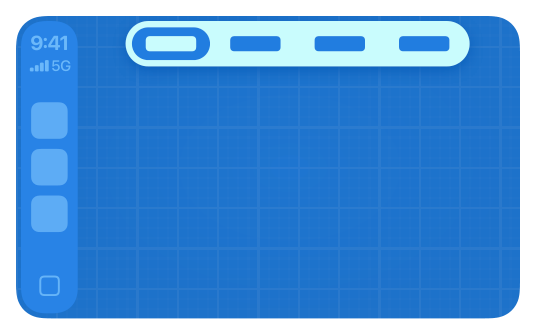
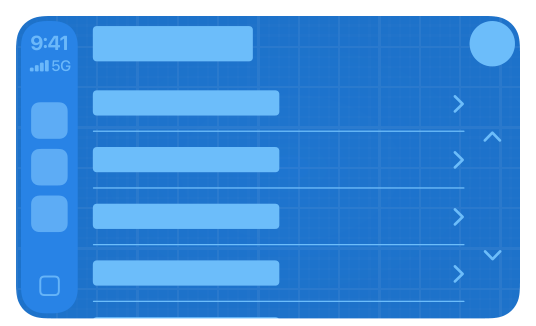
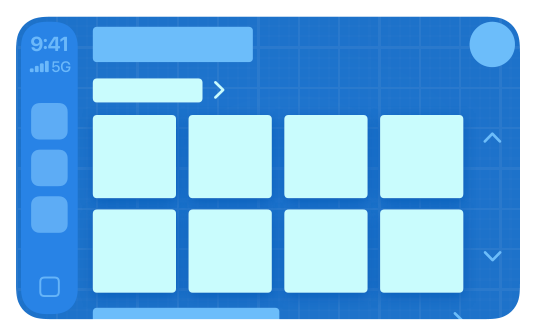
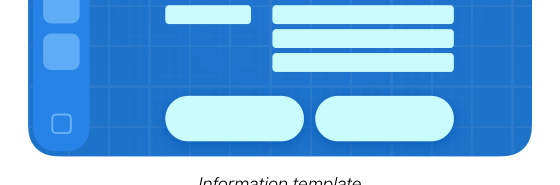
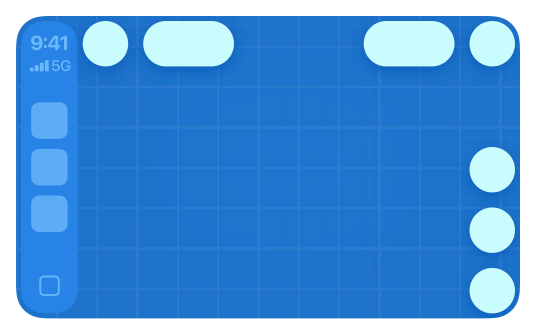
Use familiar templates.
iOS handles layout and input.
Not a custom SwiftUI screen.The phone stays away.
Every CarPlay flow must work
without touching the iPhone.
No “pick up your phone” step.
We choose the content and actions. Apple defines the interface boundaries.
An entitlement
is permission.
Apple approves the app’s purpose.
A key in a file is not enough.
- 1
Join the developer program.
A paid Apple Developer account.
- 2
Request the right category.
For our app: EV charging.
- 3
Configure the approved capability.
App ID, signing profile, entitlements.
developer.apple.com/contact/carplay ↗
Charging is our category.

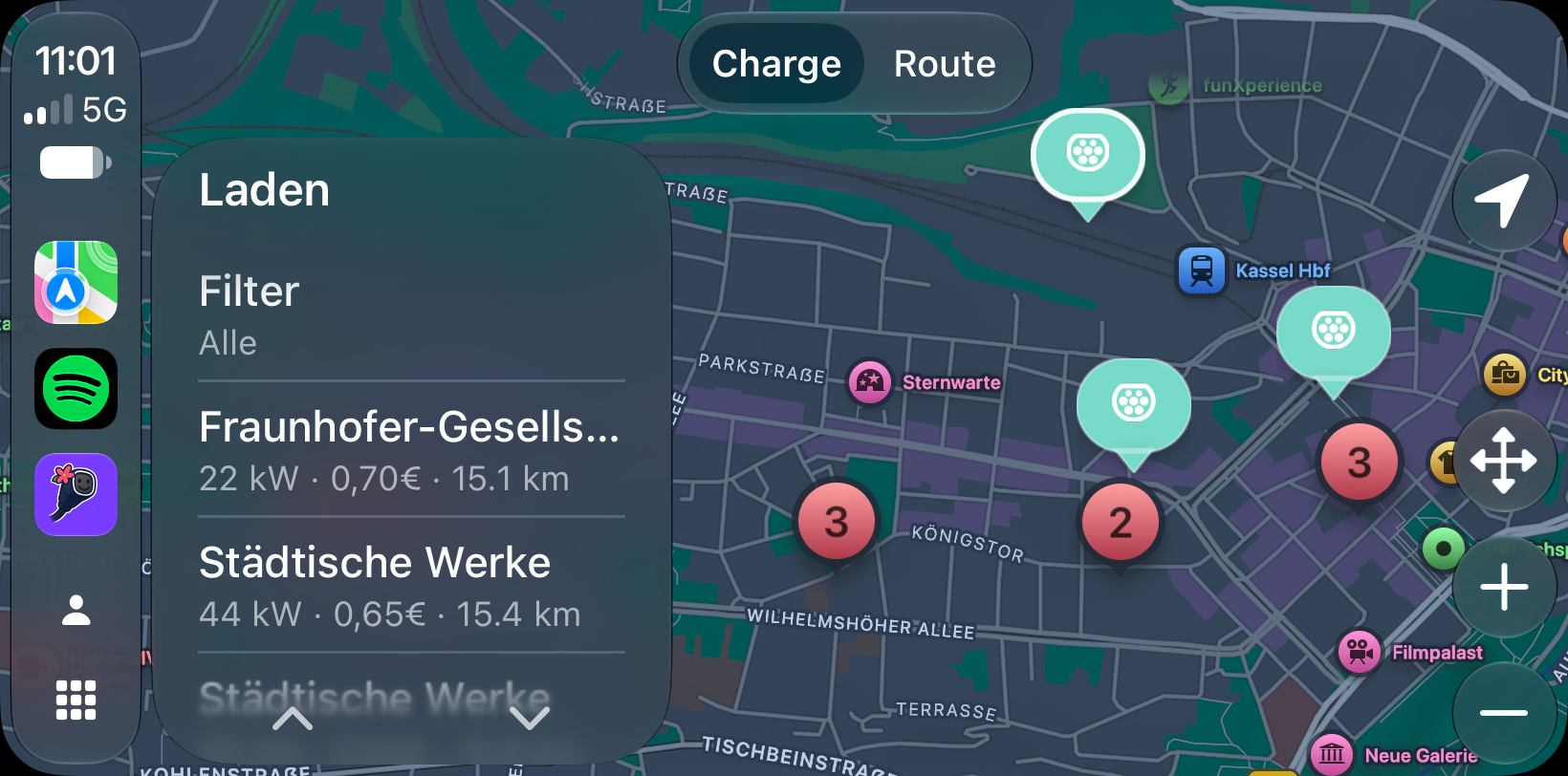
Find a charging stop.
We refresh the chargers.
CarPlay manages the map.
com.apple.developer.
carplay-charging

Provide turn-by-turn.
Requires turn-by-turn guidance.
Not an extra map permission.
com.apple.developer.
carplay-maps
Refresh charger pins: yes. Build our own navigation map: not with charging.
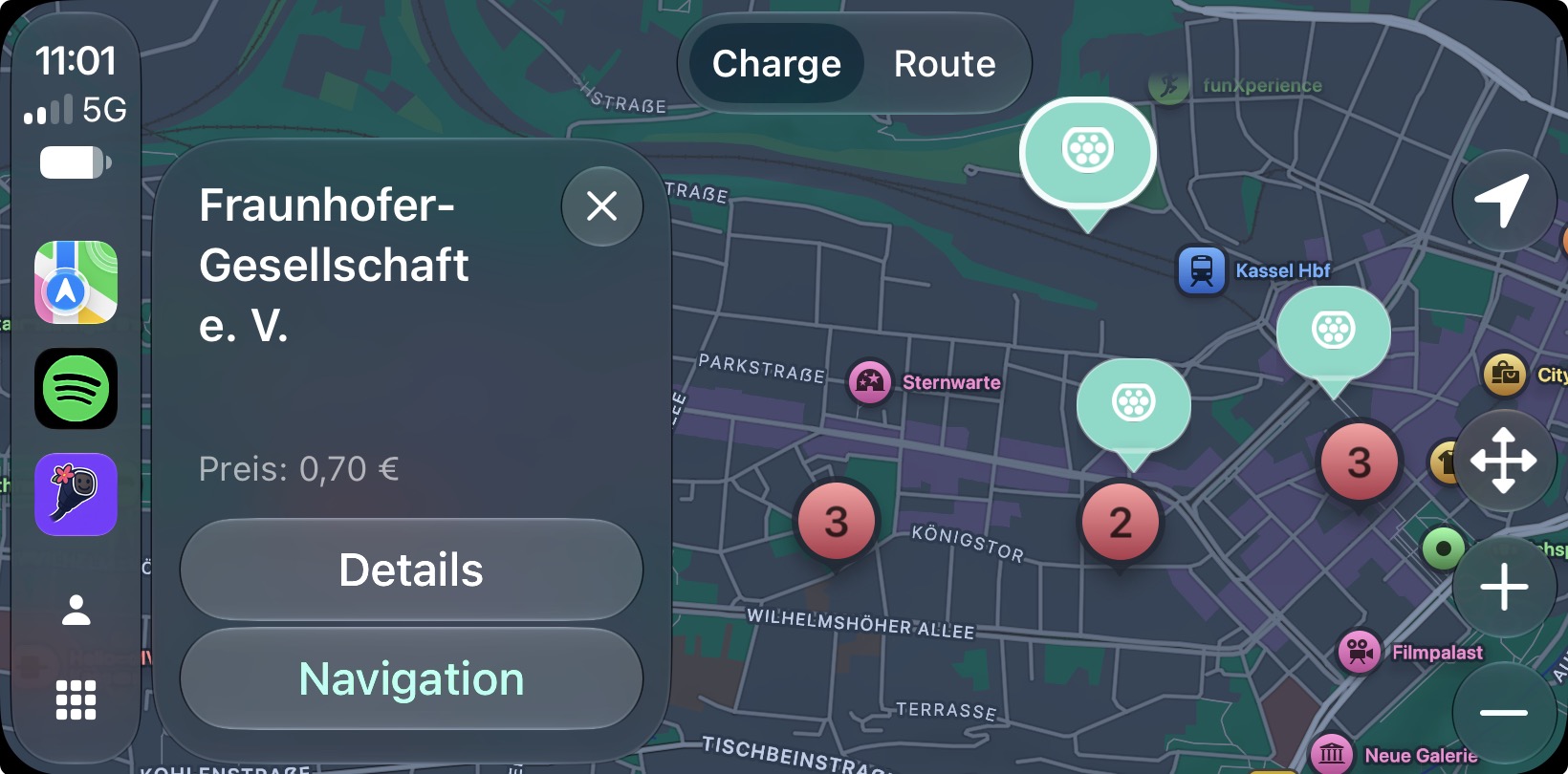
Our “Navigate” action opens Apple Maps for driving directions.

“Hey Siri,
show fast chargers
in Charge a Smile.”
App Shortcuts give the task a voice entry point.
Give the agent
something it can trust.
Current docs.
Apple’s rules,
captured in a skill.
A clear flow.
Figma mockups
and written requirements.
A firm boundary.
Charging templates.
Navigation via Maps.
The prompt came after the preparation.
Build.
Inspect.
Fix. Repeat.

The agent calls Xcode itself.
- Build project
- Run tests
- Debug
CarPlay Simulator
Check the interaction.
Human review
Compare with the intended flow.
One app.
A second scene.
- 1
Declare the
CarPlay scene.
Configuration tells iOS
which delegate to call.
- 2
Open the app
in CarPlay.
iOS creates the scene
and calls our delegate.
- 3
Receive the
UI controller.
It manages templates.
It does not load chargers.
- 4
Install the
first template.
Our tab bar + POI view.
Then populate the content.
CarPlay can launch without the phone interface opening first.
On disconnect: remove observers and release the controller.
Same app. Shared services.
Separate interfaces.
Our app runs on the iPhone.
Shared services & saved preferences
Chargers · prices · location
Selected charging tariffs
iPhone interface
SwiftUI views for exploring.
CarPlay scene
Our code builds templates.
It keeps its own screen state.
Templates →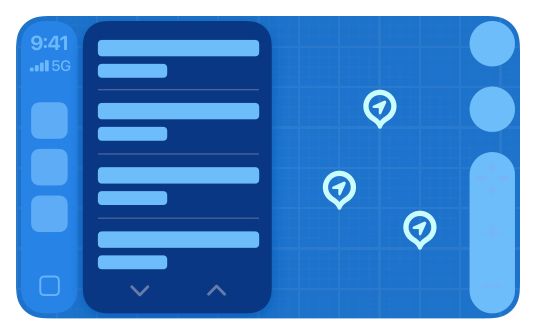
Car display
iOS renders it.
← Driver actions
Share the services—not the SwiftUI view. No second app installed in the car.
From a charger record
to a pin.
Our app loads.
Station name
Coordinates + power
Price for our tariff
Data service + preferences
Our code adapts.
Name → title
Coordinates → pin
Power + price → subtitle
Build the point of interest
iOS presents.
Update the POI template.
CarPlay draws the list + map.
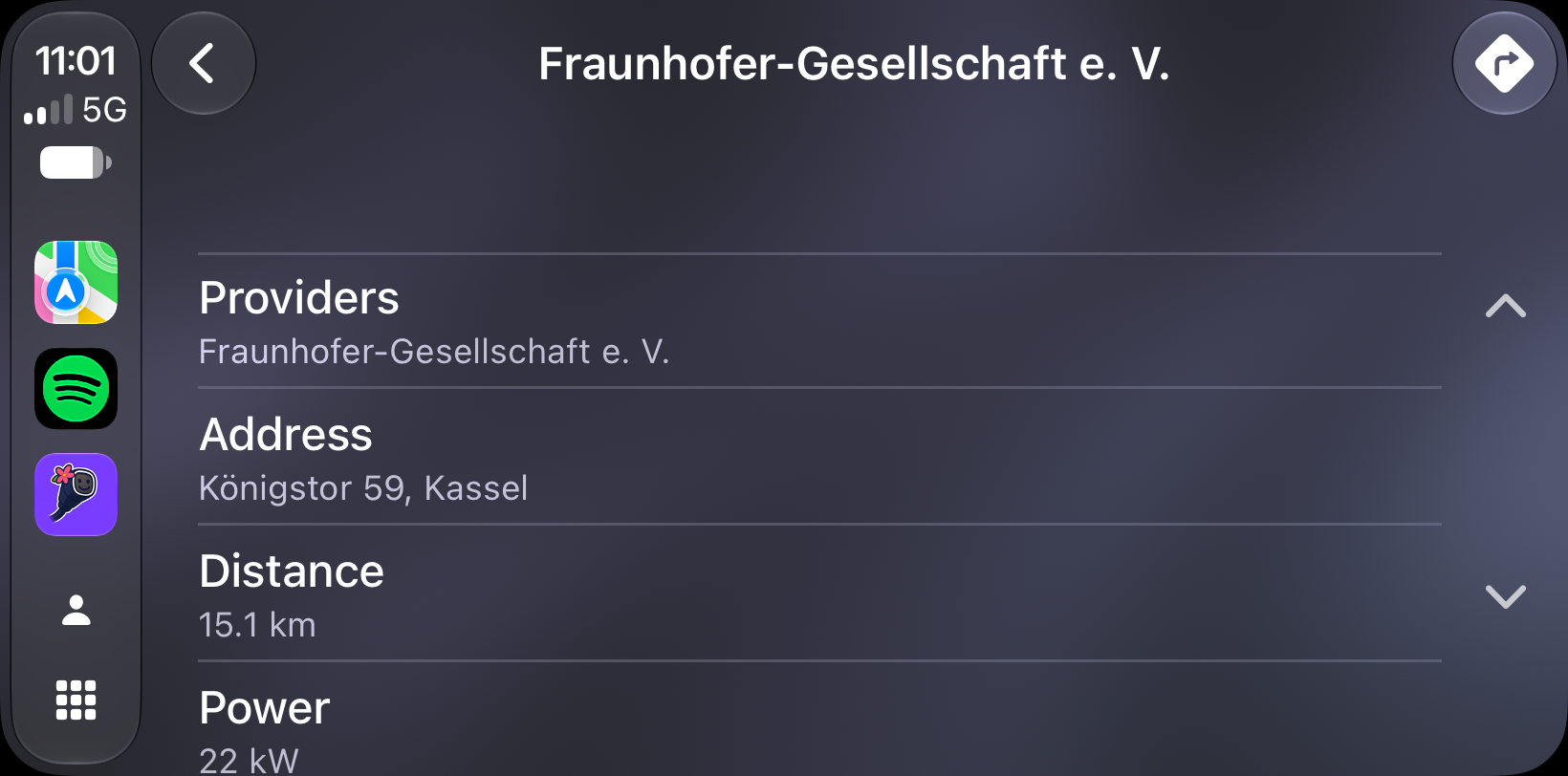
↩Driver taps Details → our handler runs → we build the detail template.
New location or data? Our app must refresh the template.
Test CarPlay
at your desk.
A real iPhone. A simulated dashboard.
USB
Mac
Runs CarPlay Simulator.
Setup illustration · not a Simulator capture.
- 1
Download.
Additional Tools for Xcode
Apple Developer · More Downloads
- 2
Connect.
iPhone → Mac by USB.
Open CarPlay Simulator.
- 3
Run.
Launch the app on iPhone
from Xcode.
Setup: approved entitlement · development-signed app · Developer Mode
Xcode 27: Device Hub supports USB-connected iPhones, not simulated iPhone CarPlay.
Download Additional Tools ↗Test the journey.
Not just the build.
Cold launch.
Lock.
Refresh.
Reconnect.
Simulator first. Then the real car, with a safe test setup.
Now, into the car.
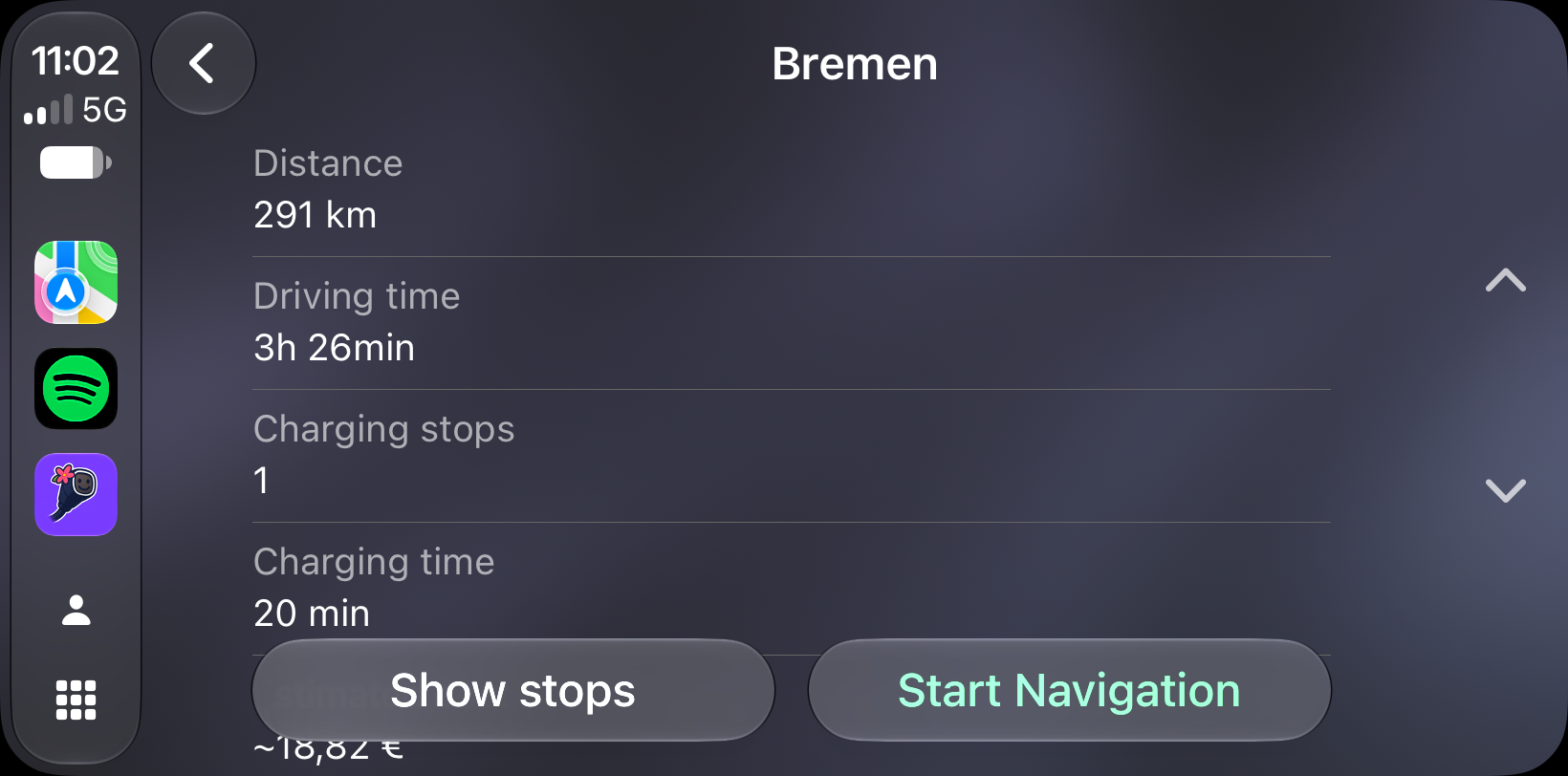
Find nearby chargers.
Choose a charging stop.
Check the details.
Trip summary · Navigate hands off to Maps.
One useful task.
Now in the car.
The goal: keep the phone in your pocket.
Actual Charge a Smile screenshots in an illustrated car interior.
Your implementation
checklist.
- 1
Check the task and the rules.
Category → approval → supported templates and limits.
- 2
Connect a scene to shared services.
Declare → receive controller → set root → populate.
- 3
Direct and verify the agent.
Document → design → build feedback → human review.
- 4
Test the whole lifecycle.
Cold launch · locked phone · refresh · disconnect.
developer.apple.com/carplay ↗